MiniTool Partition Wizard Server 8
- Convert NTFS to FAT.
- Copy Dynamic disk volume.
- GPT Disk and MBR Disk interconversion.
- Copy UEFI boot disk.
- Convert GPT-style Dynamic Disk to Basic.
- Move Boot/System volume for Dynamic Disk.
MiniTool Partition Wizard 8
- Partition Wizard Server Edition
- Partition Wizard Enterprise Edition
- Partition Wizard Technician Edition


Partition Manager Server Resources
Reasons to buy
- 24x7 customer support service
24 hours a day, 7 days a week. Free technical support. - Safety guarantee for online purchase 100% secure electronic Internet transactions with RegNow.
- Support Windows Server and SBS
32/64 bit Windows XP, Vista, Win7 and Windows Server
Purchase Methods
- Tel: 1-952-646-5331 (international)
- Fax: 1-604-756-1847
- Email: support@minitool.ca
- We also accept Purchase Order from our value customers. If you like to order our product by Purchase Order, please contact our sales directly for quote and invoice.
Awards & Ratings





Hot Extending: Extend NTFS Windows system partition without reboot
Case Study:
Case study 1: Reduce data partition to extend system partition
Disk is configured 2 partitions. One system partition and another partition (for data) next to system partition. Assume partition C is system drive, partition D is next to partition C.
1. Close applications running on D so that you don't have to reboot.
2. Launch MiniTool Partition Wizard.
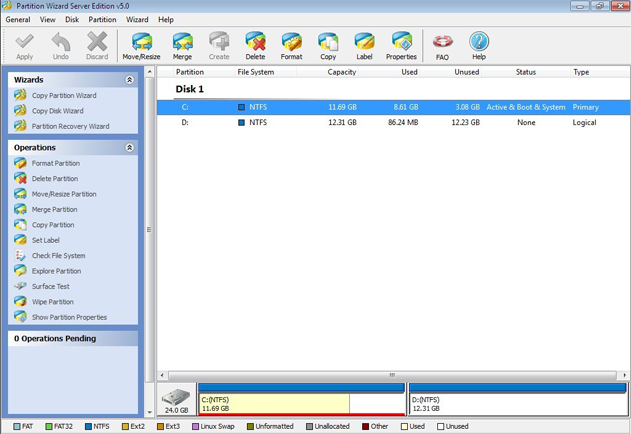
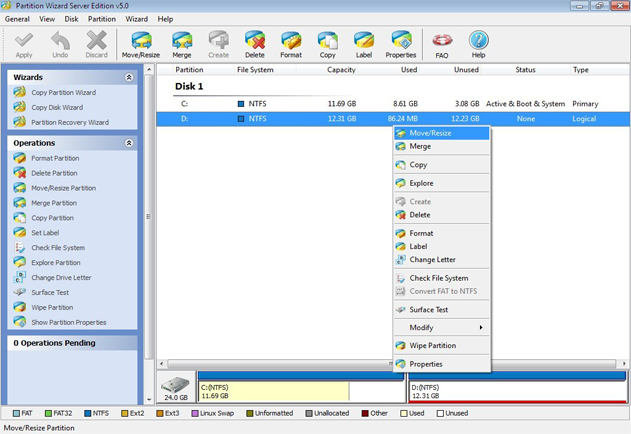
3. Right click the partition D and select "move/resize".
4. Position the mouse pointer to the left edge of the partition. When the mouse pointer changes to a double-headed arrow, drag mouse to the right to change partition size.
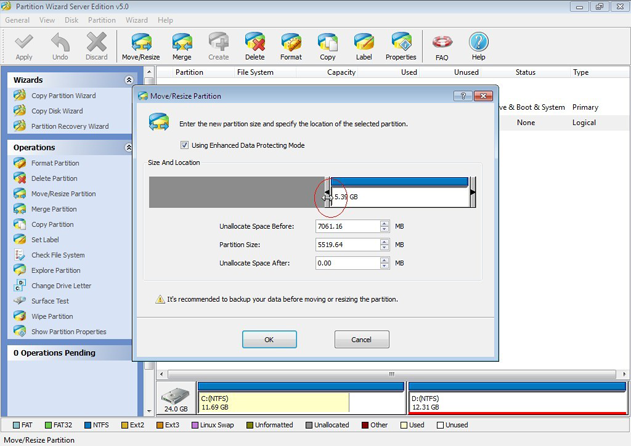
5. Click "Ok". Partition layout preview will display an unallocated space is created between C and D partition.
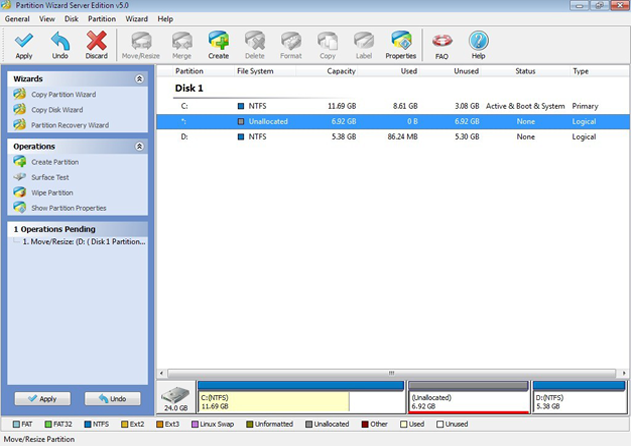
6. Right click the partition C and select "move/resize".
7. Position the mouse pointer to the right edge of the partition. When the mouse pointer changes to a double-headed arrow, drag mouse to the right to extend C partition.
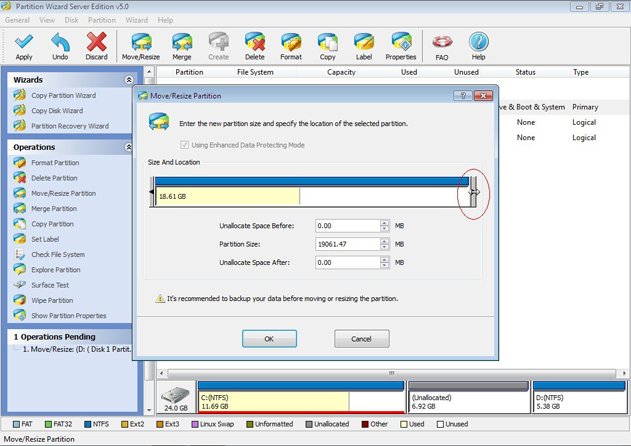
8. Click "Ok". C partition is extend.
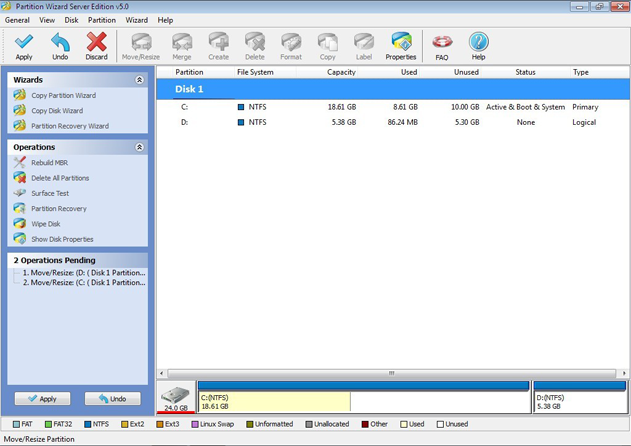
9. Click "Apply".
Case study 2: Fill the gap
Disk is configured 2 partitions. One system partition and another partition (for data). There are some unallocated space between C and D.
Assume partition C is system drive, partition D is partition for data.
1. Start MiniTool Partition Wizard and partition layout preview display C partition and D partition, some unallocated space between C and D partition.
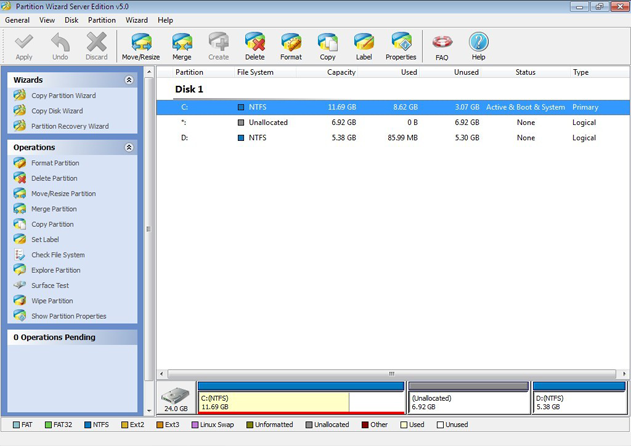
2. Right click on partition C, choose "move/resize".
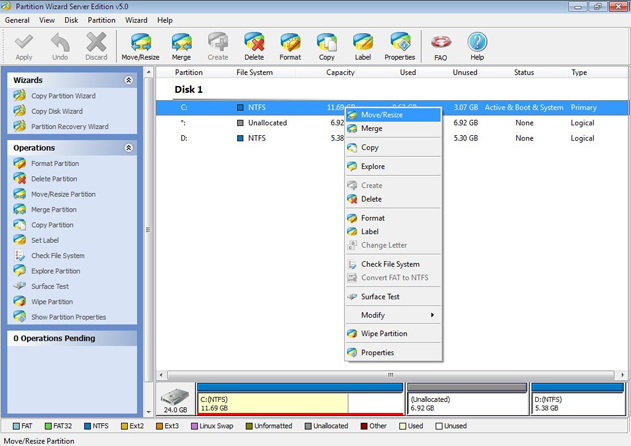
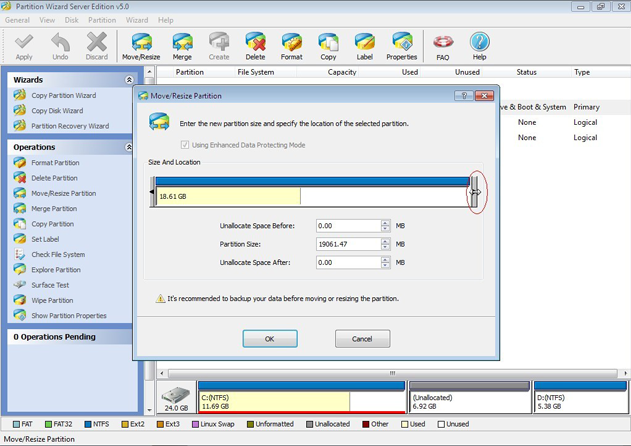
3. Extend partition C by drag the partition edge to its right and click OK.
4. Partition layout preview will display C partition is extend.
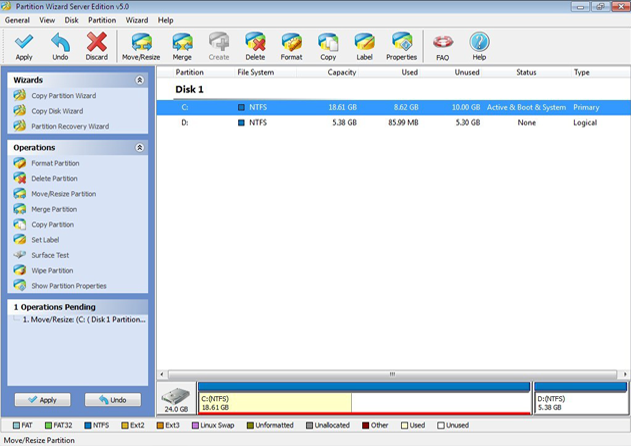
5. Click "Apply".
Extending NTFS Windows system with MiniTool Partition Wizard is so simple. You can complete it with ease.
Free download MiniTool Partition Wizard at http://www.PartitionWizard.com/download.html.






















