MiniTool Partition Wizard Server 8
- Convert NTFS to FAT.
- Copy Dynamic disk volume.
- GPT Disk and MBR Disk interconversion.
- Copy UEFI boot disk.
- Convert GPT-style Dynamic Disk to Basic.
- Move Boot/System volume for Dynamic Disk.
Windows server partition manager
Q: Due to some problems occurring during partition allocation, there are two partitions storing same type of file appearing on Windows Server 2008 R2. One has been fully filled and the other has much spare space. Can I merge these two partitions into one?
A: If the two partitions are both NTFS and they are adjacent, users can use professional Windows sever partition manager to merge partitions. The problem can be solved easily.
Importance of server partition manager
Users' demands for data storage are keeping changing, so it is a common situation where various kinds of partition problems come up and users' needs can not be met. This will cause great inconvenience to data storage work and is likely to influence disk space utilization and the operating speed of server, which users are unwilling to see. But excellent partition manager is able to solve problems and it is the best choice for users.
How to merge partitions?
Professional Windows server partition manager is also recommended to users to merge partitions on server. And users can visit http://www.partitionmanagerserver.com to download it. This Windows partition manager is of powerful functions and simple operations, so users can realize almost all partition management operations, for example, resizing/moving partition, changing cluster size, converting FAT to NTFS, copying partition, wiping partition and including merging partitions as well. Then we are going to show how to merge partitions.
After launching the professional Windows partition manager, users will see its starting interface, shown as follows.
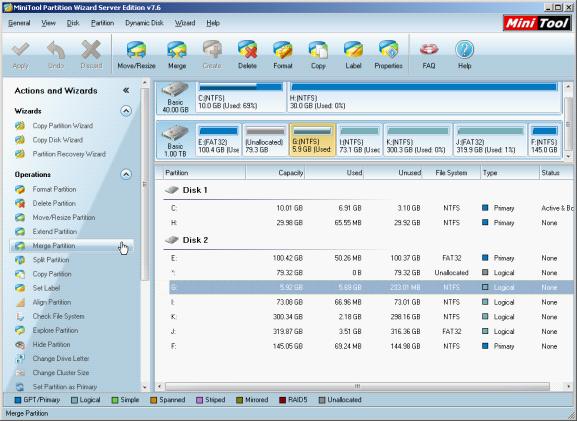
Select any partition and users can see detailed partition management functions in "Operations" area of this professional partition manager, including Merge Partition. Clicking "Merge Partition" function, users can perform operations by following prompts. Main procedures are following.
1. Select one of the partitions that will be merged and click "Next>".
2. Select another partition and click "Finish".
3. Click "Apply" to perform the operations.
If users also want to reasonably manage Windows Server partition, merging partitions without damaging partition data, please download this powerful partition manager and it will the best choice.
A: If the two partitions are both NTFS and they are adjacent, users can use professional Windows sever partition manager to merge partitions. The problem can be solved easily.
Importance of server partition manager
Users' demands for data storage are keeping changing, so it is a common situation where various kinds of partition problems come up and users' needs can not be met. This will cause great inconvenience to data storage work and is likely to influence disk space utilization and the operating speed of server, which users are unwilling to see. But excellent partition manager is able to solve problems and it is the best choice for users.
How to merge partitions?
Professional Windows server partition manager is also recommended to users to merge partitions on server. And users can visit http://www.partitionmanagerserver.com to download it. This Windows partition manager is of powerful functions and simple operations, so users can realize almost all partition management operations, for example, resizing/moving partition, changing cluster size, converting FAT to NTFS, copying partition, wiping partition and including merging partitions as well. Then we are going to show how to merge partitions.
After launching the professional Windows partition manager, users will see its starting interface, shown as follows.
Select any partition and users can see detailed partition management functions in "Operations" area of this professional partition manager, including Merge Partition. Clicking "Merge Partition" function, users can perform operations by following prompts. Main procedures are following.
1. Select one of the partitions that will be merged and click "Next>".
2. Select another partition and click "Finish".
3. Click "Apply" to perform the operations.
If users also want to reasonably manage Windows Server partition, merging partitions without damaging partition data, please download this powerful partition manager and it will the best choice.






















