MiniTool Partition Wizard Server 8
- Convert NTFS to FAT.
- Copy Dynamic disk volume.
- GPT Disk and MBR Disk interconversion.
- Copy UEFI boot disk.
- Convert GPT-style Dynamic Disk to Basic.
- Move Boot/System volume for Dynamic Disk.
MiniTool Partition Wizard Help
Getting Started
Using MiniTool Partition Wizard
- MiniTool Partition Wizard Basic
- General
- Menu Of View
- Disk Operations
- Align All Partitions
- Copy Disk
- Delete All Partitions
- Rebuild MBR
- Initialize to MBR Disk
- Initialize to GPT Disk
- Partition Recovery
- Wipe Disk
- Disk Properties
- Convert Dynamic Disk to Basic Disk
- Convert MBR Disk to GPT Disk
- Convert GPT Disk to MBR Disk
- Surface Test
- Partition Operations
- Extend Partition
- Split Partition
- Align Partition
- Move/Resize Partition
- Merge Partition
- Copy Partition
- Explore Partition
- Create Partition
- Delete Partition
- Format Partition
- Label Partition
- Change Letter
- Set Active/Inactive
- Hide/Unhide Partition
- Check File System
- Convert FAT to NTFS
- Convert NTFS to FAT
- Wipe Partition
- Partition Properties
- Set Partition as Primary
- Set Partition as Logical
- Surface Test
- Change Partition Serial Number
- Change Partition Type ID
- Change Cluster Size
- Dynamic Disk
- Create Volume
- Delete Volume
- Format Volume
- Move/Resize Volume
- Wipe Volume
- Explore Volume
- Check File System
- Change Volume Label
- Change Volume Letter
- Change Volume Cluster Size
- Volume Properties
- Wizard
- Technical Support
Copy Disk
- There are several ways to initiate the Copy Disk operation:
- 1. Select the disk you would like to copy » click Disk in the top menu » click Copy.
- 2. Select the disk you would like to copy, click the Copy Disk button under Disk Operations in the Action Panel.
- 3. Select the disk you would like to copy, click the Copy button in the toolbar.
- 4. In any conditions, just click the Copy Disk Wizard under Wizard in the top menu.
The process of Copy disk is listed below:- a. Selecting source disks (if using copy Disk Wizard)
- b. Selecting target disks
- c. Set the copy method.
- Here are several copy methods:
- a. Fit partitions to entire disk
- b. Copy partitions without resize
- c. Copy partitions with minimum size.
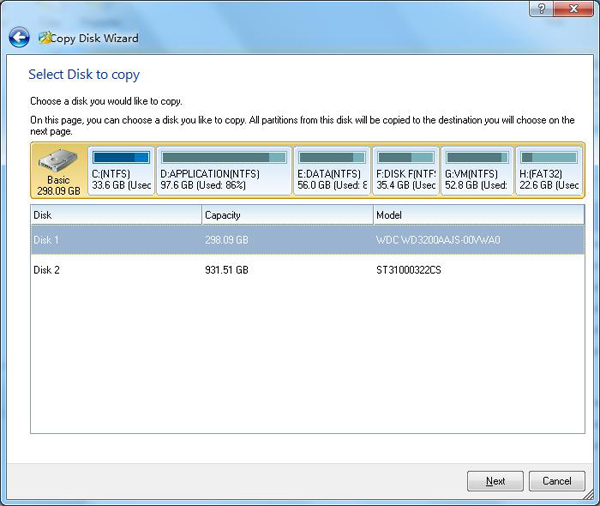
- Copy disk requires that the source disk and target disk to not be the same physical drive. For operating systems such as Windows Vista/2008/7, only after using Copy partitions without resize would the computer boot from the newly copied disk.






















