MiniTool Partition Wizard Server 8
- Convert NTFS to FAT.
- Copy Dynamic disk volume.
- GPT Disk and MBR Disk interconversion.
- Copy UEFI boot disk.
- Convert GPT-style Dynamic Disk to Basic.
- Move Boot/System volume for Dynamic Disk.
MiniTool Partition Wizard Help
Getting Started
Using MiniTool Partition Wizard
- MiniTool Partition Wizard Basic
- General
- Menu Of View
- Disk Operations
- Align All Partitions
- Copy Disk
- Delete All Partitions
- Rebuild MBR
- Initialize to MBR Disk
- Initialize to GPT Disk
- Partition Recovery
- Wipe Disk
- Disk Properties
- Convert Dynamic Disk to Basic Disk
- Convert MBR Disk to GPT Disk
- Convert GPT Disk to MBR Disk
- Surface Test
- Partition Operations
- Extend Partition
- Split Partition
- Align Partition
- Move/Resize Partition
- Merge Partition
- Copy Partition
- Explore Partition
- Create Partition
- Delete Partition
- Format Partition
- Label Partition
- Change Letter
- Set Active/Inactive
- Hide/Unhide Partition
- Check File System
- Convert FAT to NTFS
- Convert NTFS to FAT
- Wipe Partition
- Partition Properties
- Set Partition as Primary
- Set Partition as Logical
- Surface Test
- Change Partition Serial Number
- Change Partition Type ID
- Change Cluster Size
- Dynamic Disk
- Create Volume
- Delete Volume
- Format Volume
- Move/Resize Volume
- Wipe Volume
- Explore Volume
- Check File System
- Change Volume Label
- Change Volume Letter
- Change Volume Cluster Size
- Volume Properties
- Wizard
- Technical Support
Move/Resize Volume
-
Resize volume
Resize Volume refers to performing extend/shrink/move operations. Under Windows, Disk Management can help you extend non-system partition simple volume and spanned volume but fails to expand or shrink Striped Volume, Mirrored Volume and Raid-5. Disk Management under Windows 7/2008/Vista offers Shrink Volume function which is not included on other operating systems. Hence, Resize Volume function provided by operating system can never meet needs of different users. It is noteworthy that MiniTool Partition Wizard smashed this limitation. By using MiniTool Partition Wizard, you can resize simple volume, resize spanned volume, expand dynamic volume, shrink dynamic volume and move dynamic volume easily no matter it is system volume or non-system volume.
Procedures of Move/Resize volume
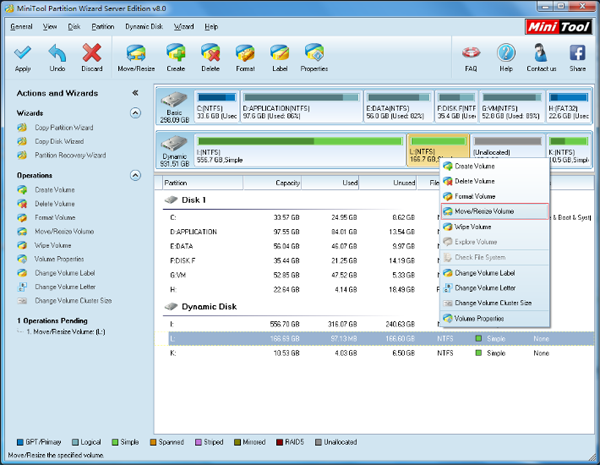
Step 1: select and right click the target volume, then click "Move/Resize Volume" from the popup menu:
Step 2: Resize and move volume in the popup window by directly dragging arrows with red circles leftwards or rightwards to expand volume or dragging the volume handle leftwards or rightwards to move volume. Of course, MiniTool Partition Wizard still allows you to enter accurate value in the textboxes below to resize volume and move volume:
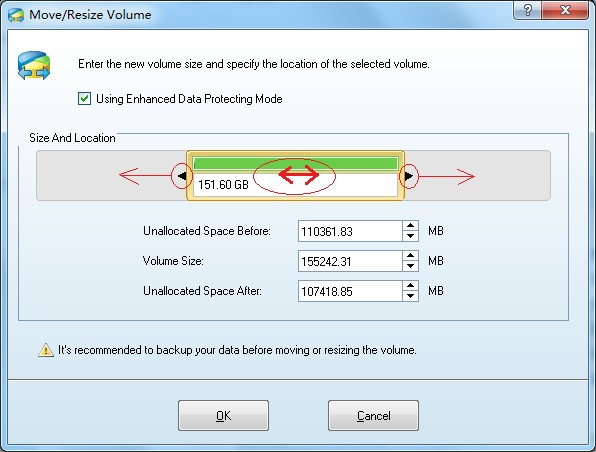
Step 3: Click "OK" to finish Move/Resize Volume operation.
Note: If the space of the volume is not enough, you can shrink the free space in other volumes to enlarge the capacity of this volume. In this case, the security of data is ensured. Your data would not be destroyed or missing when extending, shrinking or moving volume. Even more, you can do the Move/Resize Volume operation to system volumes or boot volume especially when the system volume is not enough.






















